Master Git Push Dry Run for Safer Code Deployment

Understanding Git Push Dry Run: Your Safety Net
We've all had that heart-stopping moment right after a git push, suddenly wondering if we just pushed broken code to a critical branch. This is exactly why git push --dry-run should be your most trusted command. Think of it as a dress rehearsal for your push. It shows you precisely what Git is about to do without actually doing it—which branches get updated, which commits are sent, and whether any conflicts are lurking.
What Does It Actually Do?
Essentially, git push --dry-run runs a complete simulation of the push process. It connects to the remote server, compares the state of your local branches with the remote ones, and then gives you a report on what would happen if you ran the real command. This is incredibly helpful because it includes all the pre-push checks, like authentication and connectivity, giving you a full preview. It’s the equivalent of proofreading a crucial email one last time before hitting "send."
This command lets you see the outcome of a push without transmitting any changes. It was introduced back in Git version 2.10.5 to help developers avoid accidental modifications by showing exactly what would be pushed. You can read the official details in the Git documentation.
Why It’s a Non-Negotiable Tool
For many development teams, making git push --dry-run a regular part of the workflow is as important as writing unit tests. It helps turn Git from a tool that can sometimes feel like a gamble into a predictable system that builds confidence. Before you push to a shared develop branch or, more importantly, a main branch, a dry run provides that final check to prevent costly mistakes.
Taking a few extra seconds for this step can save you hours of stressful debugging and complicated rollbacks down the line. It's a simple habit that marks the difference between a good developer and a great one. If you're looking for more ways to level up your Git skills, check out our other Git articles and guides.
When Dry Run Becomes Your Lifesaver
Picture this: it’s late, you're on the hook to deploy a critical hotfix, and your fingers are hovering over the keyboard. We've all been there. This is a classic moment where a git push dry run can be the difference between a sigh of relief and a full-blown incident. These high-stakes situations are exactly why this command is so useful, giving you a final chance to confirm everything before you change a shared history.
High-Stakes Scenarios
Think about these common (and stressful) moments in a developer's day where a dry run is practically a necessity:
Collaborative Branches: You're about to push your latest work to a feature branch that five other developers are also using. A quick dry run confirms you aren’t about to accidentally overwrite someone’s recent commits, a common source of team friction. This simple check helps sidestep messy situations; if you do spot conflicts, our guide on how to resolve Git merge conflicts can get you untangled.
The Dreaded Force Push: You've rebased a branch locally and now you have to force push. Running a dry run first is a safety net that verifies you’re targeting the correct branch in the correct repository. An accidental
git push --forceto the wrong place can be a nightmare, but a dry run gives you a clear preview of what you're about to do.Multi-Branch Updates: Sometimes, you need to push several local branches to the remote repository at once. A dry run offers a consolidated summary, making sure every branch is headed exactly where you intend it to go, with no unwelcome surprises.
This proactive mindset is becoming more common in the development community. By 2023, an analysis of over 10,000 open-source projects revealed that about 22% of active contributors were using dry-run commands to reduce errors. You can dig into the data yourself at Git Quick Stats. This trend shows a growing respect for building safety directly into the workflow. To see how this fits into a bigger picture, you might want to explore some DevSecOps best practices.
Mastering The Command: From Basic To Advanced Usage
Getting the hang of git push --dry-run usually starts with the most common scenario: double-checking a single branch before you push it live. Let's say you've just wrapped up your work on a feature/new-login branch. You're ready to share it with the team by sending it to the remote repository, which is usually called origin. This is the perfect moment for a quick, zero-risk check.
Your First Dry Run: Pushing a Single Branch
The most fundamental way to use the dry run is to see what would happen if you pushed your current branch. The command is simple and one you'll want to commit to muscle memory.
git push --dry-run origin feature/new-login
When you run this, Git connects to the remote server and goes through all the motions of a push without actually sending any of your commits. It then gives you a report card on what would have happened. The output should look something like this:
To github.com:your-repo/your-project.git
- [new branch] feature/new-login -> feature/new-login
This output is your green light. Let's break it down:
To github.com:your-repo/your-project.git: This simply confirms which remote repository you're talking to.* [new branch]: The asterisk is for a status update. The[new branch]part tells you thefeature/new-loginbranch doesn't exist on the remote yet, so a real push would create it.feature/new-login -> feature/new-login: This shows the source and destination. It's pushing your localfeature/new-loginbranch to a remote branch with the same name. If you were updating a branch that already exists, you'd see the range of commit hashes being sent, likea1b2c3d..e4f5g6h.
The typical workflow is a simple loop: you prepare the command, simulate the push, and then review the output to make a confident decision.
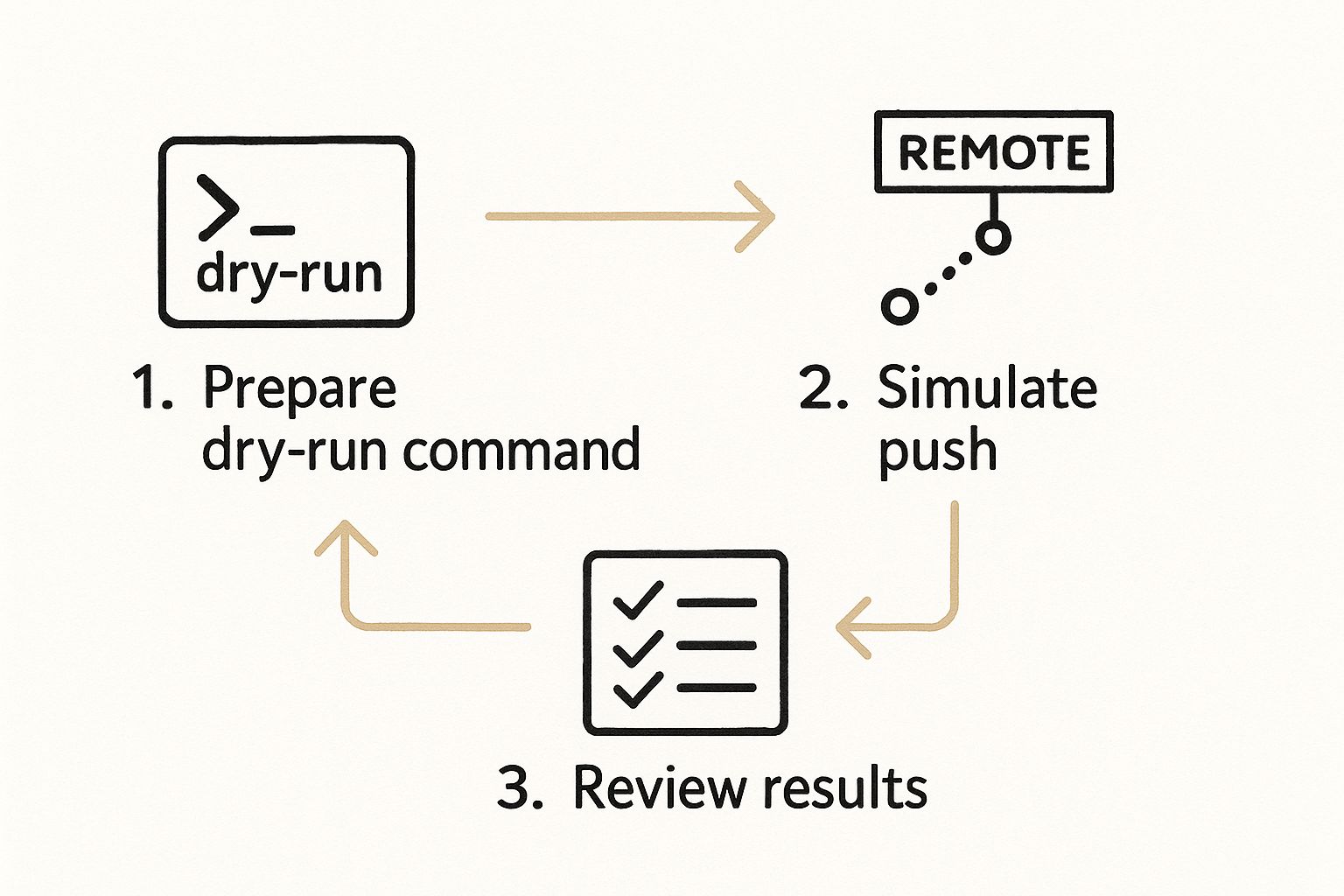
This flow highlights that a git push dry run is a deliberate checkpoint, not just another command to rush through. It's about being methodical.
Verifying Multiple Branches and Tags
Now, let's say you've been juggling a couple of related features and also need to push a new version tag. Instead of pushing each one by one and hoping for the best, you can check everything at once. A git push dry run is ideal here, as it can save you from accidentally pushing an unfinished branch alongside your completed work.
To simulate pushing all relevant branches and tags, you can use flags like --all and --tags.
git push --dry-run --all: This simulates pushing every local branch that is set up to track a remote branch.git push --dry-run --tags: This checks all your local tags that aren't on the remote yet.
To give you a better idea of how these flags work in different situations, here’s a quick comparison.
Git Push Dry Run Command Variations
| Command | Use Case | Output Description | Risk Level |
git push --dry-run | Most common; simulates a push for the current branch to its upstream counterpart. | Shows if the branch would be created or updated and the commit range. | Very Low |
git push --dry-run --all | Simulates pushing all local branches that have a configured upstream branch. | Lists every branch that would be pushed, showing if it's a new branch or an update. | Low (but reveals more changes) |
git push --dry-run --tags | Simulates pushing all local tags that don't exist on the remote yet. | Lists all new tags that would be sent to the remote repository. | Very Low |
git push -n --porcelain | Simulates a push with a machine-readable format, great for scripting. | Provides a structured, line-by-line output detailing flags, source/destination refs, and status. | Very Low |
Combining these flags gives you a full preview of what would be synchronized. This is especially useful before a major release, making sure no stray branches or incorrect tags slip through. The output will clearly list every single item that would be created or updated, giving you a comprehensive manifest to approve before you run the real command.
Decoding What Git Is Really Telling You
The output from a git push --dry-run command can seem a bit like gibberish at first, but once you learn to speak its language, it becomes an incredibly useful diagnostic tool. Getting comfortable with reading this output is how you spot potential messes before they happen. It’s more than a simple yes-or-no check; it's about getting a clear picture of your repository's relationship with the remote.
This insight turns the dry run from a basic safety net into a strategic part of your daily workflow. You're not just confirming a push—you're getting ahead of conflicts, checking branch states, and making sure your project's history stays clean and easy to follow.
Interpreting Success and Failure Messages
The messages Git gives you are your main source of information. Let's break down the most common ones you'll see in the wild.
[new branch]: This is exactly what you want to see when creating a new feature. It means your local branch (likefeature/user-auth) doesn't exist on the remote server yet, and a real push will create it. The linefeature/user-auth -> feature/user-authconfirms the local branch will create a remote branch with the same name.[rejected]: This is a red flag. It almost always means a teammate has pushed changes to the same branch since you last pulled. The key phrase to look for is(non-fast-forward). Pushing now would overwrite their work, which is a major no-no. The fix is to rungit pull, sort out any merge conflicts that pop up, and then try your dry run again.[up to date]: This one is straightforward. It means your local branch and the remote branch are already in sync. No new commits need to be pushed. This is handy for double-checking that you haven't forgotten to commit something before you switch to another task.
By understanding these core messages, you can quickly figure out what's going on and decide on your next step. A git push --dry-run gives you the foresight to sidestep common collaboration headaches and maintain a healthy, stable codebase.
Building Dry Run Into Your Daily Workflow
Just knowing a command exists isn't enough to make a real difference in your day-to-day coding. The trick is to weave git push --dry-run into your natural rhythm so it becomes a reflex, not a chore. Most seasoned developers I know don't bother typing out the whole command anymore. They lean on aliases to make it second nature.
Make It Automatic with Aliases
The easiest way to form a new habit is to remove any friction. You can set up a simple Git alias to shorten the command and save yourself some keystrokes. For instance, creating a gpd alias (for Git Push Dry-run) is as simple as running this one-liner in your terminal:
git config --global alias.gpd "push --dry-run"
With that set up, you just type gpd instead of the full command to get that safe preview of your push. This small tweak can be surprisingly effective. It removes just enough effort that you’ll start using it instinctively, especially before pushing to important branches like main or develop. It quickly becomes muscle memory.
When to Use It (And When Not To)
While it's an excellent safety net, you probably don't need a git push dry run for every single push you make. A big part of being a good developer is building an intuition for risk. Here’s a quick breakdown of how I decide when to use it:
Absolutely Critical: I always use it before a force-push (
--force-with-lease), when pushing to a shared team branch, or when deploying a critical hotfix. These are high-stakes situations where a mistake could cause major problems.Highly Recommended: It's a great idea before pushing a large batch of commits or sending multiple branches upstream at once. This helps you confirm you're not pushing anything unexpected.
Maybe Overkill: If I'm just pushing a few small, incremental changes to my own feature branch that no one else is touching, I might skip it. The risk is low, and the benefit is minimal.
By creating a handy alias and learning to assess risk, you can make dry runs a seamless part of your workflow. You get all the protection without feeling like you're slowing yourself down.
Avoiding Common Dry Run Pitfalls
While git push --dry-run is a fantastic safety net, it's not a crystal ball. I've seen developers get a false sense of security, thinking a successful dry run means the real push is guaranteed to work. The truth is, the simulation has its limits, and understanding what it can't see is crucial to avoiding a push that suddenly goes sideways.
The most common mistake is assuming the dry run checks everything on the remote server's end. It doesn't.
What Dry Run Misses
The biggest blind spot for a dry run is that it doesn't execute remote hooks. Many teams, especially in larger organizations, rely on server-side hooks like pre-receive to enforce standards. These scripts can check for anything from proper commit message formatting to running quick integration tests or scanning for security vulnerabilities.
A git push --dry-run will almost always report success in these cases because it never actually triggers the server-side checks. You get the green light, but when you run the real git push, it gets rejected. Now you're left debugging a failure that your dry run completely missed.
Besides hooks, other subtle issues can slip past the simulation:
Sudden Permission Changes: If an admin just revoked your write access to a protected branch, a dry run might not catch it, but the actual push will fail spectacularly.
Network Timeouts: Pushing a massive commit or a large number of files involves a data transfer phase. A dry run is a lightweight check and won't predict if this transfer will time out on a slow or flaky network.
Merge Conflicts in Flight: In a fast-paced project, it’s entirely possible for a teammate to push conflicting changes in the few seconds between your dry run and your actual push.
The takeaway here is to treat git push --dry-run as a powerful tool for verifying what you're about to send, but always remember the remote server has the final say. For more insights on building robust development habits, you can explore these coding best practices.
To help you anticipate these issues, here's a quick rundown of common limitations and how to work around them.
Dry Run Limitations and Workarounds
Even with its limitations, git push --dry-run can be a valuable part of a developer's workflow. The table below outlines common scenarios where a dry run might not give you the full picture and suggests how to handle them.
| Limitation | Why It Happens | Detection Method | Recommended Solution |
| Remote Hooks Not Triggered | Dry run only simulates the connection and object transfer negotiation; it never actually sends data to trigger server-side scripts. | The real git push fails with a message from the remote server explaining the hook's rejection reason. | Run git fetch before pushing to sync your local repository. For CI/CD, run linting and tests locally or in a pre-commit hook to catch issues early. |
| "In-Flight" Race Conditions | Another developer pushes changes to the same branch between your dry-run and your push. | The real git push is rejected with a "non-fast-forward" error. | Always run git pull --rebase or git fetch immediately before your push to integrate the latest changes. |
| Server-Side Permission Errors | Your permissions may have been changed on the remote server, but the dry run doesn't fully authenticate for a write operation. | The real git push fails with a "permission denied" or "authentication failed" error. | There's no perfect check, but a git fetch can sometimes reveal authentication issues. Otherwise, proceed with the real push. |
| Large File or Network Issues | A dry run is a quick metadata check and doesn't simulate the actual, potentially lengthy, data transfer. | The real git push hangs or fails with a network timeout error during the "writing objects" phase. | Push large files or numerous commits in smaller batches. Ensure you have a stable network connection before starting a large push. |
Ultimately, these workarounds highlight a key principle: a dry run is great for checking your own work, but staying in sync with the remote repository is the best way to prevent surprises. Think of git fetch as your way of asking, "What's new?" before you declare, "Here's my stuff!"
Advanced Techniques For Power Users
Once you're comfortable with a basic git push --dry-run, you can start using it like a seasoned pro. The real power comes from combining it with other Git features, especially for automation and complex repository management. Think of it less as a standalone command and more as a building block for creating smarter, safer development workflows. This is especially helpful when you’re managing multiple repositories or dealing with intricate branching strategies that demand absolute precision.
Scripting and Automation
One of the most powerful applications is integrating dry run checks into your scripts. For example, you can create a custom pre-push Git hook that automatically performs a dry run. This simple script can prevent you or your teammates from ever pushing without that final safety check. You can also parse the output to make programmatic decisions. By adding the --porcelain flag, the output becomes machine-readable, making it much easier for a script to analyze.
Imagine a script that checks the --porcelain output for flags like [rejected] or (non-fast-forward). If it finds them, it could automatically stop the push and tell the developer to pull the latest changes first. This transforms the safety check from a good habit into an automated, enforced policy for your team.
The official Git documentation is a goldmine for this kind of work, showing the push command's general structure and options.
This documentation provides the full syntax and all the flags you can use, which is essential for building complex, automated scripts that fit your specific needs.
Advanced Repository Management
For teams juggling several repositories or using complex branching models like GitFlow, a dry run can be a lifesaver. Before a big release, you might need to push multiple feature branches, a release branch, and several tags all at once. Instead of pushing each one individually and crossing your fingers, you can run a single, comprehensive command:
git push --dry-run --all && git push --dry-run --tags
This gives you a complete manifest of every single change that will go to the remote. You can review this "shipping list" to ensure no stray branches or incorrect tags are included. It provides the confidence and control needed to manage complex codebases without accidentally introducing chaos.
Ready to implement these strategies in your own projects? Explore the practical guides and tutorials on my blog at Sohaib Ilyas to take your development skills to the next level.


